Plan videos from text or visual references, explore creative effects, and bring your ideas together in one workspace.
Preview a scene, find an idea and make it your own.
The ReelCraze AI video generator brings video models and prepared effects into one workspace. Start with a written scene or a reference image, choose a model and adjust its available settings. You can also choose a performance and add photos for its roles, then generate a video with your credits.
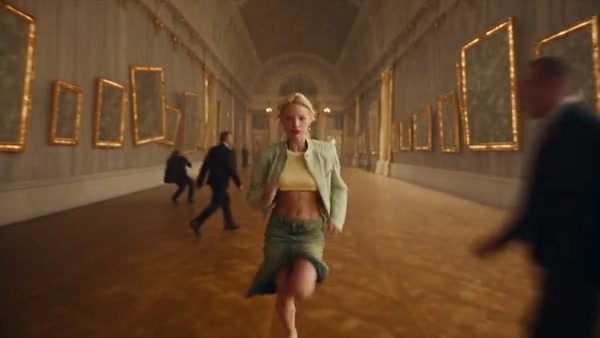
Use the AI video generator to shape your idea, review your inputs and create a video.
STEP 1
Select Video in the creator and choose a model. Start with a text prompt, add a supported image or explore an effect with a prepared scene. Available reference modes depend on the model you select.
STEP 2
Tell the AI video generator what should be in the scene, what moves and how the camera should look. For example, describe paper flowers opening in sunlight with a slow camera push-in.
STEP 3
Choose from the aspect ratios, duration and other controls available for your model. Check your prompt, references and credit cost, then generate your video.
Explore a prepared performance, plan a video from a prompt or reference, and choose settings that suit your idea.
Browse video effects for people, pets and groups when you want a starting point with an existing performance. Preview the scene, then check which photo belongs to each available role. A clear, unobstructed subject makes it easier to prepare a reference that fits the action.
Explore effects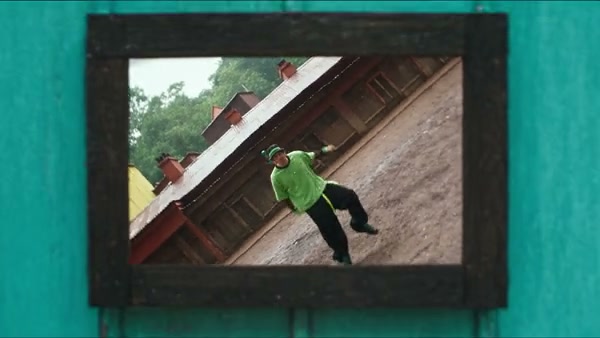
In the AI video generator, a text prompt describes the subject, action, setting and camera. Image-to-video starts from a visual reference as well. Depending on the model and mode, you can add supported references. Check the controls for your selected model to see which inputs are available.
Explore the video workspace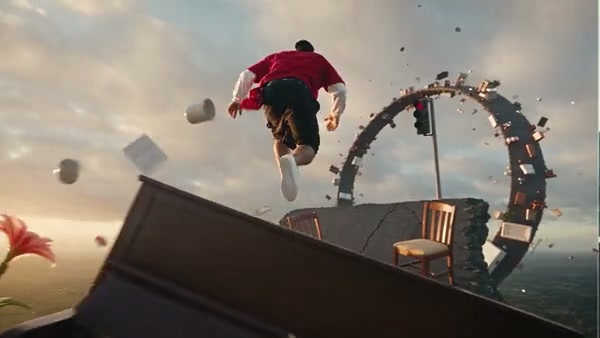
Explore the aspect ratios and durations available for your selected model. A wide frame can suit an establishing shot, while a vertical format may fit a mobile reel. Review your framing, prompt and references together, since available options can depend on the model and input mode.
Explore video settings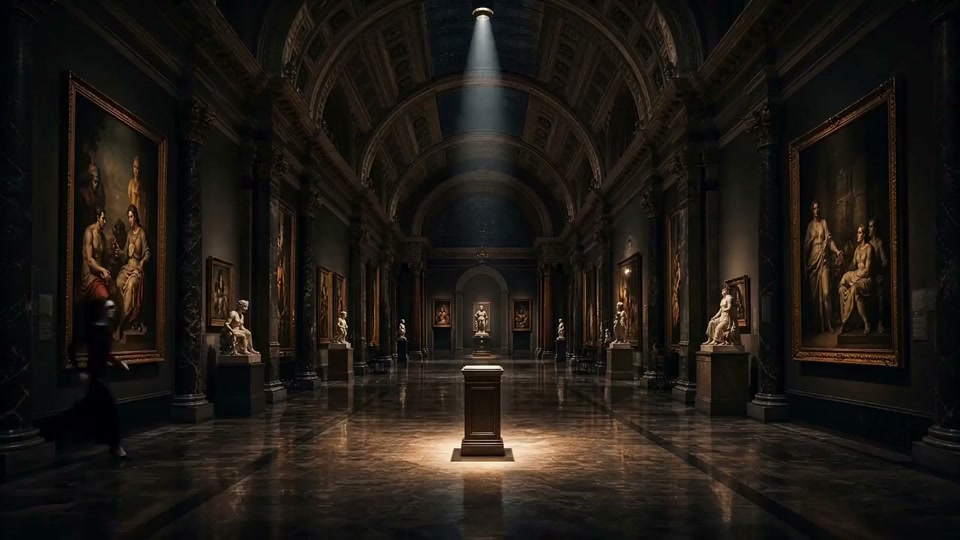
Explore starting points for short videos, visual stories and imaginative scenes.
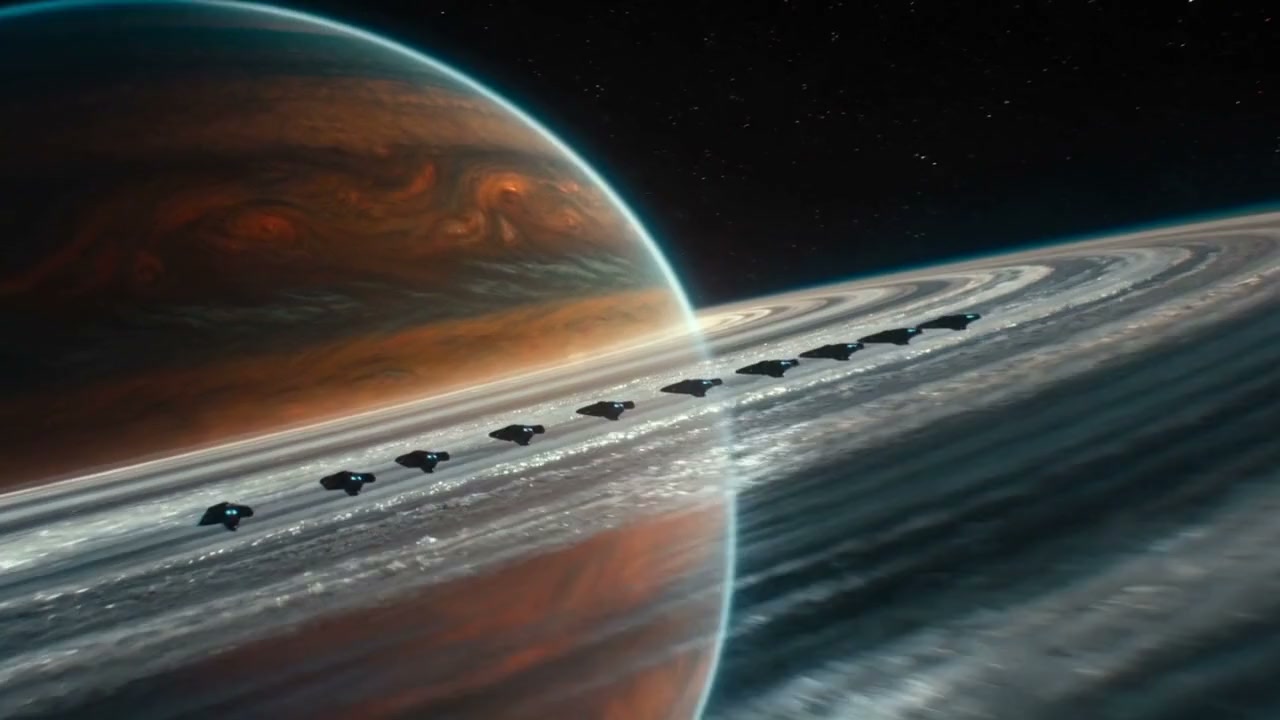
Imagine otherworldly landscapes and characters. Describe the setting, lighting and camera angle that give your scene its atmosphere.
Inputs, creative options and how to get started.
An AI video generator uses a written prompt and, where supported, visual references to create a video. ReelCraze brings a video workspace together with prepared effects. Choose a model, describe your scene and generate a video in the workspace.
Text-to-video starts with a description of a subject, setting and movement. Image-to-video adds a starting image as a visual reference, with a prompt to describe the intended motion. The available reference modes and settings depend on the model you choose.
Begin with one subject and a clear action, then add the setting, lighting or camera movement that matters to your scene. For example: “Paper flowers open on a table in soft sunlight, with a slow camera push-in.” Keep the instructions consistent with any image or motion reference you select.
Custom creation starts with your own prompt and model settings. A template supplies a prepared performance and shows which photos belong in its available roles. Browse effects to preview a scene, or use the AI video generator workspace to plan an idea around your own inputs.
You can choose from the aspect ratios, durations and other controls shown for your selected video model. Options vary by model and reference mode. Choose a shape that fits your intended screen, and check the settings before generating.
Yes. Sign in, choose a model, describe your idea and add any supported references. Check the credit cost before generating. You can also select an effect and add photos to its available roles.
Examples show possible movement and composition, but every result can vary. Small details such as hands, overlapping subjects and fast motion can be difficult for video models. Choose a clear reference and keep the prompt focused on the action you want to explore.
Start with your own prompt, explore the available settings or browse a scene that sparks an idea.
